Can You Save YouTube Videos to Your Camera Roll?
Yes — but not directly from the YouTube app. You need to download the video as an MP4 file first, then import it into Photos (iPhone) or your gallery (Android). ClipSaver handles the download step free in your browser; your phone’s built-in Files or Share menu moves it to your camera roll.
Only save content you own or have permission to download. ClipSaver is not affiliated with YouTube or Google.
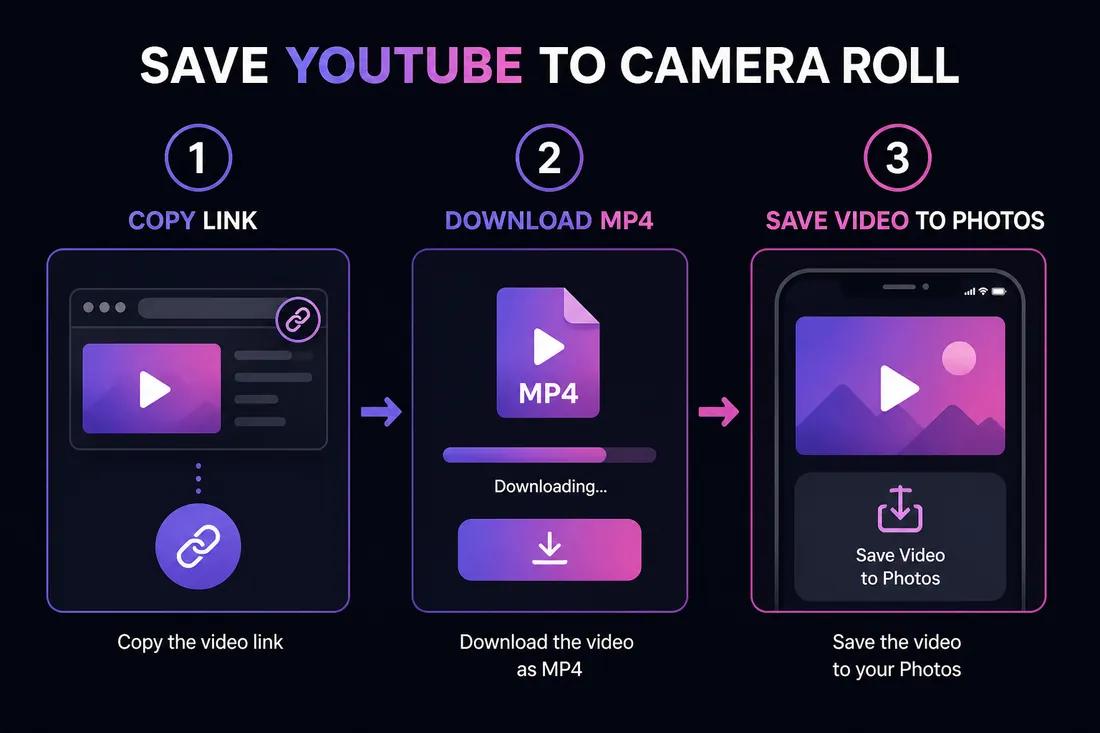
How to Save YouTube Videos to Camera Roll
- 1
Copy the YouTube video link
Open the video in the YouTube app. Tap Share → Copy link. You can also copy the URL from youtube.com in your mobile browser.
- 2
Download the MP4 with ClipSaver
Open Safari (iPhone) or Chrome (Android), go to ClipSaver’s YouTube video downloader, paste the link, and tap Download. Choose MP4 and save the file.
- 3
Move the file to your camera roll
On iPhone: open Files → Downloads → tap the video → Share → Save Video. On Android: open Downloads → tap Share → save to Google Photos or your gallery app.
Download a YouTube video now
Paste your link on ClipSaver first — then move the MP4 to Photos.
Open YouTube Video DownloaderiPhone: Save to Photos Step by Step
- Use Safari — it has the smoothest download flow on iOS.
- After downloading, open the Files app (blue folder icon).
- Tap Browse → Downloads and find your MP4.
- Tap the video, then the Share icon (square with arrow).
- Choose “Save Video” — it appears in your Photos library.
Android: Save to Gallery Step by Step
- Use Chrome or Samsung Internet to open ClipSaver.
- After downloading, tap the notification or open the Downloads app.
- Find the MP4 file and tap Share.
- Select Google Photos, Samsung Gallery, or your preferred gallery app.
- The video is now in your camera roll / gallery.
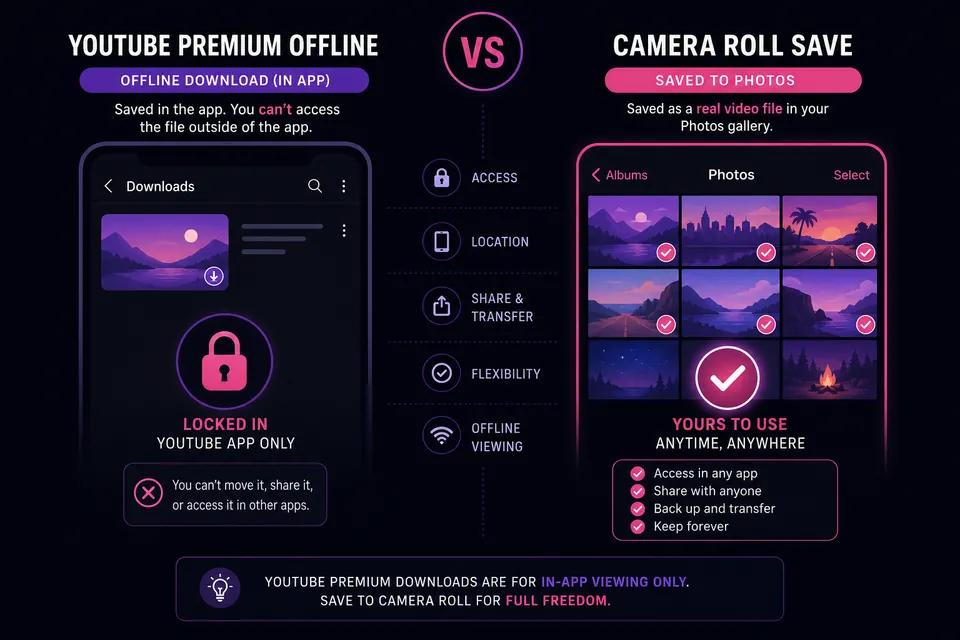
Camera Roll vs YouTube Premium Offline
| Feature | YouTube Premium offline | Save to camera roll via ClipSaver |
|---|---|---|
| Video in Photos/Gallery app | No — YouTube app only | Yes |
| Works after canceling subscription | No | Yes — you own the file |
| Share video file with others | No | Yes |
| Cost | Paid monthly | Free |
| Extra app install | No | No |
Tips for Saving to Camera Roll
- Pick 720p if storage is tight — camera roll videos add up quickly.
- Shorts work the same way — copy the Shorts link and follow the same steps.
- If “Save Video” is missing on iPhone, make sure the file is MP4, not MP3.
- Check Safari’s download arrow if the file does not appear in Files right away.
For more iPhone help, see our YouTube download on iPhone guide.
Frequently Asked Questions
Related download tools
ClipSaver is not affiliated with Instagram or Meta. Only download content you have the right to save.