Can You Download YouTube Videos on iPhone?
Yes. The iPhone does not include a built-in YouTube downloader, and Apple restricts many downloader apps from the App Store. The reliable method is to use Safari with a browser-based tool like ClipSaver. Copy the YouTube link, paste it on ClipSaver, and save the file directly to your iPhone.
Only download content you own or have permission to save. ClipSaver is not affiliated with YouTube or Google.
How to Download YouTube Videos on iPhone with ClipSaver
- 1
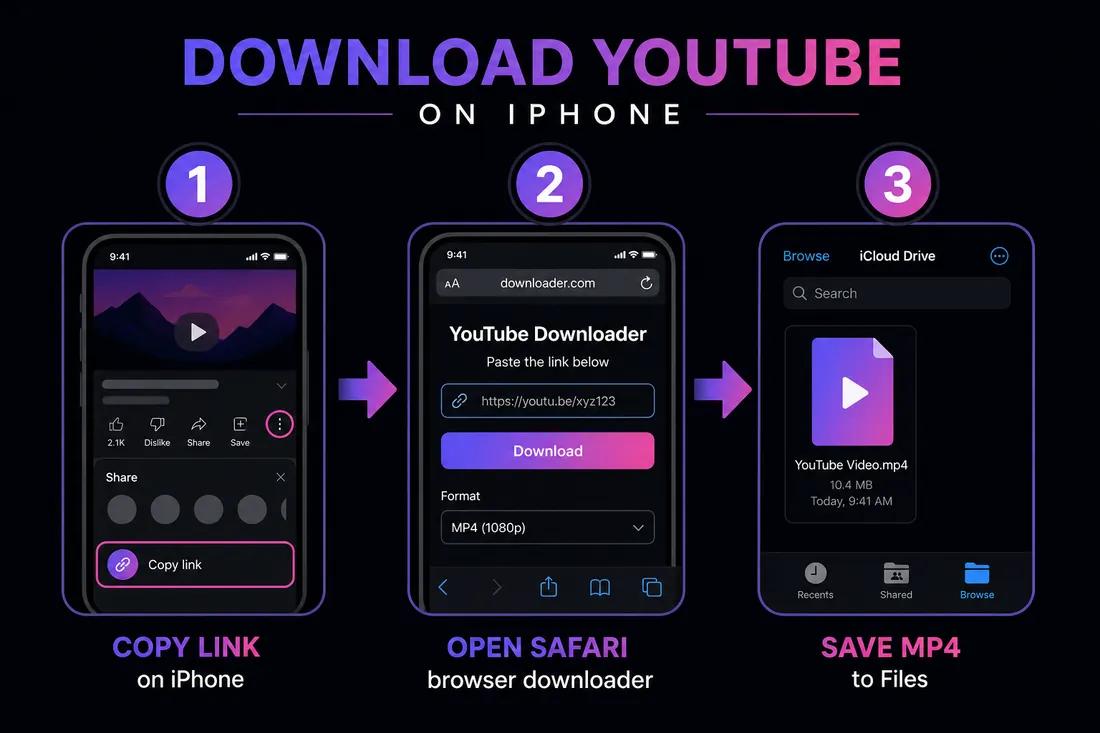
Copy the YouTube video link
Open the video in the YouTube app and tap Share → Copy link. You can also open the video in Safari, tap the address bar, and copy the URL from there.
- 2
Open ClipSaver in Safari
Switch to Safari and go to ClipSaver’s YouTube video downloader. Using Safari is recommended on iPhone — it handles file downloads natively without extra apps.
- 3
Paste the link and save the file
Paste the URL, tap Download, choose MP4 or MP3, and tap the download prompt. The file goes to your Downloads folder or the Files app. From Files, you can move it to Photos if you want it in your camera roll.
Download a YouTube video on iPhone now
Open our YouTube downloader in Safari and paste your link — free, no login.
Open YouTube Video DownloaderSaving to Photos vs Keeping in Files
ClipSaver saves the MP4 to your iPhone’s Downloads or Files app first. To add it to your camera roll, open Files, find the downloaded video, tap Share, and choose “Save Video.” This copies it to Photos. For audio-only saves, MP3 files stay in Files unless you import them into a music app.
ClipSaver vs App Store Downloaders on iPhone
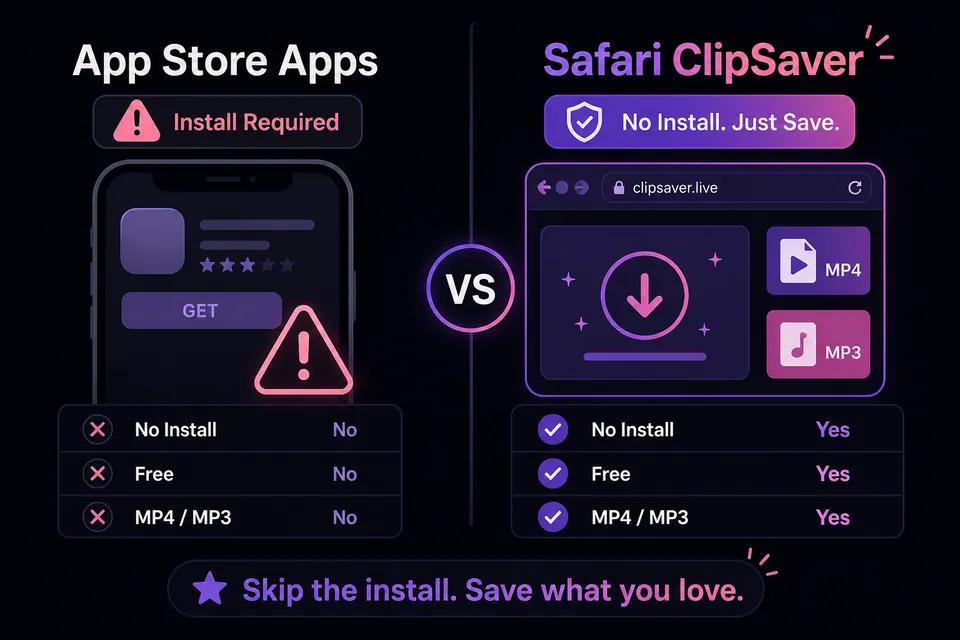
| Feature | App Store downloaders | ClipSaver in Safari |
|---|---|---|
| Works without installing an app | No | Yes |
| Risk of shady or removed apps | High | None — browser only |
| MP4 and MP3 formats | Varies | Yes |
| YouTube Premium required | No | No |
| Account or signup | Often required | No |
Tips for Downloading YouTube Videos on iPhone
- Use Safari — Chrome on iOS also works, but Safari has the smoothest download flow.
- If the download does not start, tap the download icon in Safari’s address bar to check progress.
- Pick a lower resolution (720p) for smaller files if storage is tight.
- For Shorts, copy the Shorts link the same way — ClipSaver handles vertical videos too.
- Make sure the video is public; private or members-only content may not be available.
YouTube App vs Safari on iPhone
From the YouTube app
Tap Share on any video, then Copy link. Switch to Safari, open ClipSaver, paste the URL, and download. You do not need to stay in the YouTube app after copying the link.
From Safari directly
Open youtube.com in Safari, play the video, copy the URL from the address bar, then paste it into the YouTube video downloader on ClipSaver and save the MP4.
Frequently Asked Questions
Related download tools
ClipSaver is not affiliated with Instagram or Meta. Only download content you have the right to save.