
Can You Save GIFs from Twitter?
Yes. X does not include a “save GIF” button, but you can download public GIF posts by copying the share link. ClipSaver extracts the animation and saves it as an MP4 file. On X, most GIFs are actually short silent video loops — not traditional .gif image files — but they play the same way once saved.
Only save GIFs you own or have permission to download. ClipSaver is not affiliated with X Corp.
How to Save Twitter GIFs with ClipSaver
- 1
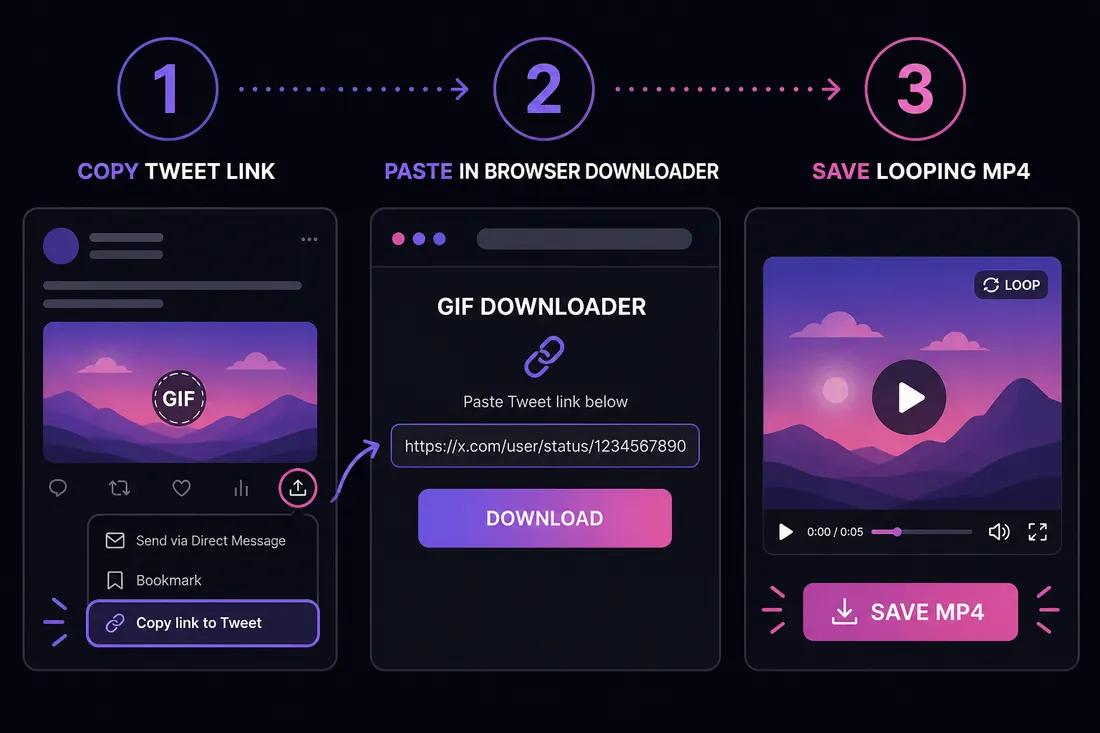
Copy the tweet link with the GIF
Open the post on X. Tap Share → Copy link on mobile, or copy the URL from your browser’s address bar on desktop. Make sure the post contains an animated GIF, not a static image.
- 2
Open the Twitter video downloader
Go to ClipSaver’s Twitter video downloader in Safari, Chrome, or any browser. GIFs on X are handled the same way as video posts.
- 3
Paste the URL and download
Paste the link, click Download, choose MP4, and save the looping animation to your device.
Save a Twitter GIF now
Paste your post link on our Twitter tool page — free, no login.
Open Twitter Video DownloaderGIF vs MP4: What You Actually Download
Twitter displays many animations as “GIFs,” but the platform serves them as short MP4 video loops without sound. ClipSaver saves that video file directly. You can play it in any video player, share it in messages, or convert it to a true .gif file later with an image editor if needed.
Screen Recording vs Downloading
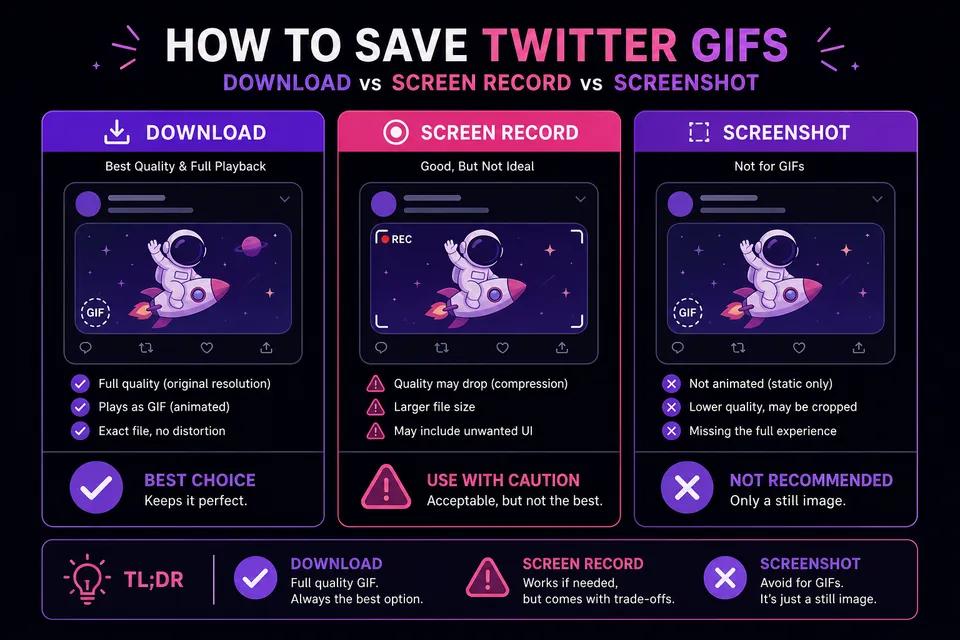
| Method | Quality | File format | Recommended? |
|---|---|---|---|
| ClipSaver download | Full resolution | MP4 loop | Yes |
| Screenshot | Static image only | PNG/JPG | No — loses animation |
| Screen recording | Lower quality, UI visible | MP4 | No — crop and quality loss |
| Bookmark in X app | In-app only | Not a file | No — cannot share offline |
Tips for Saving Twitter GIFs
- Copy the post link — do not try to long-press save in the X app; that usually does not work.
- Public posts work best. Protected accounts and private posts cannot be downloaded.
- On iPhone, open the MP4 from Files and save to Photos if you want it in your camera roll.
- True .gif files are rare on X; expect an MP4 that loops when played.
For regular video posts (not GIFs), see our Twitter video download guide.
Saving GIFs on iPhone, Android, and Desktop
iPhone and Android
Copy the tweet link in the X app, open ClipSaver in your mobile browser, paste the URL, and tap Download. The MP4 saves to Downloads or Files.
Windows and Mac
Copy the post URL from x.com, paste it into the Twitter video downloader, and save the MP4 to your Downloads folder.
Frequently Asked Questions
Related download tools
ClipSaver is not affiliated with Instagram or Meta. Only download content you have the right to save.