Can You Download Videos from Facebook?
Yes. Facebook does not offer a built-in download button for most videos, but you can save public posts by copying the share link. ClipSaver reads that URL and gives you a downloadable MP4 file. This works for feed videos, Reels, Watch clips, and most public posts you can open on facebook.com or in the Facebook app.
Only download content you own or have permission to save. ClipSaver is not affiliated with Facebook or Meta.
How to Download Facebook Videos with ClipSaver
- 1
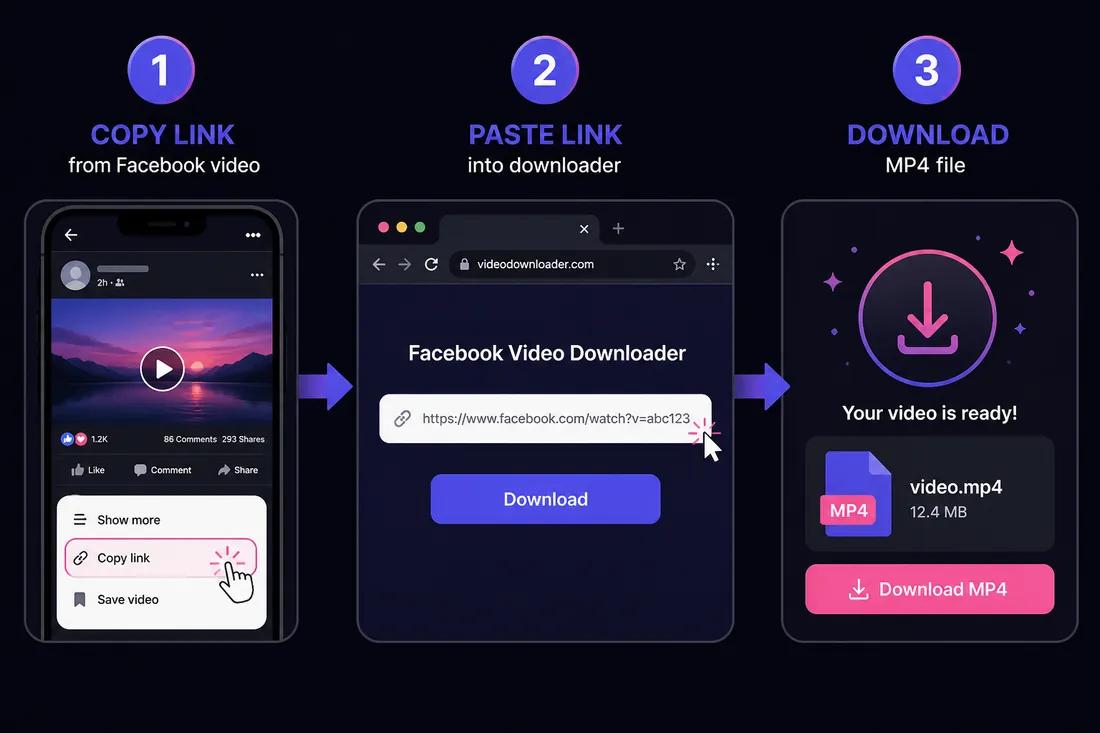
Copy the Facebook video link
Open the video post on Facebook. Tap Share → Copy link on mobile, or click the timestamp or three-dot menu and copy the post URL on desktop. You can also copy the link from your browser’s address bar when viewing the post.
- 2
Open the Facebook video downloader
Go to ClipSaver’s Facebook video downloader in Safari, Chrome, or any browser. It works on iPhone, Android, Windows, and Mac without installing software.
- 3
Paste the URL and download
Paste the copied link into the input field, click Download, choose MP4, and save the file to your device.
Download a Facebook video now
Paste your link on our Facebook tool page — free, no login required.
Open Facebook Video DownloaderFeed Videos vs Facebook Reels
The same copy-link method works for regular feed videos and Facebook Reels. ClipSaver detects the content type when you paste the URL. For short vertical Reels, the download still saves as an MP4 you can play on any device.
ClipSaver vs Facebook’s Save Video Option
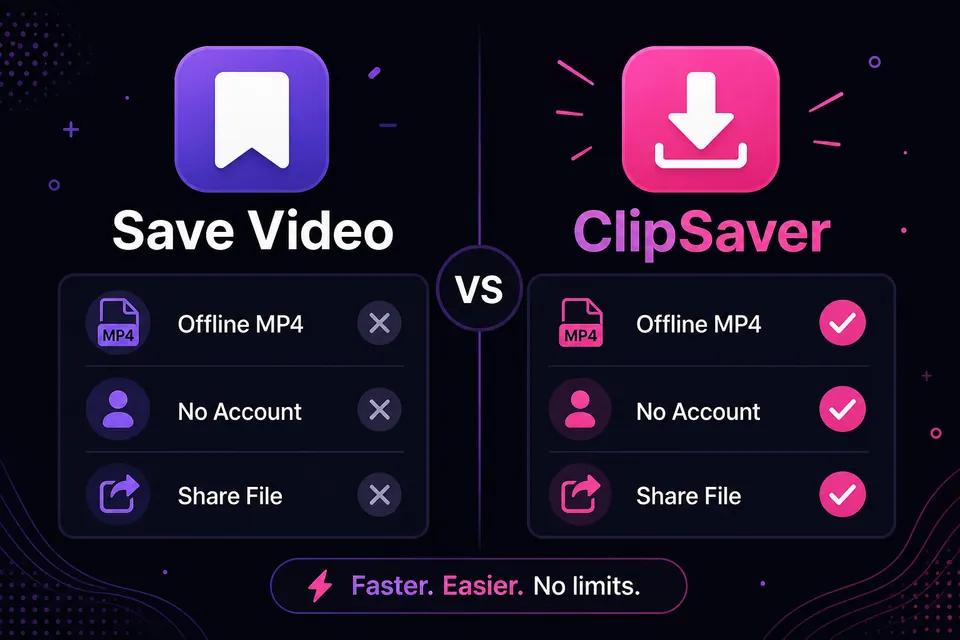
| Feature | Facebook “Save video” | ClipSaver |
|---|---|---|
| Saves MP4 to your device | No — saved inside Facebook only | Yes — file you own |
| Works without the app | No | Yes — any browser |
| Account required | Yes | No |
| Share offline with others | No | Yes — you own the file |
| Works on desktop | Limited | Yes — full browser support |
Tips When Downloading Facebook Videos
- Use the official “Copy link” option so the URL is correct.
- Public posts work best. Private profiles, groups you cannot access, and friends-only content may not download.
- If a download fails, confirm the post is still available and copy the link again.
- On iPhone, open the file from Downloads or Files and save to Photos if needed.
- For live videos, wait until the broadcast ends and the replay is posted before copying the link.
Downloading on iPhone, Android, and Desktop
iPhone and Android
Open Safari or Chrome, go to ClipSaver, paste the Facebook link, and tap Download. Your phone saves the MP4 to Downloads or Files. No app store downloader is needed.
Windows and Mac
Copy the post URL from facebook.com, paste it into the Facebook video downloader, and save the MP4 to your Downloads folder.
Frequently Asked Questions
Related download tools
ClipSaver is not affiliated with Instagram or Meta. Only download content you have the right to save.